Skip to content
Model & Output Guide

GPT Image 2.6 vs 2.5

GPT Image 2.6 vs 2.5 is a choice about the result you need: a short GIF loop, a still illustration or a vector graphic. This studio uses GPT Image 2.6 and offers GIF, PNG and SVG output. Start with your intended format, caption and background, then compare files made for the same job. There is no GPT Image 2.5 selector here.

Model Notes & Recorded Samples Model and output guide Recorded Samples GPT Image 2.5 Not Tested · Unknown Metrics
Compare the output format, text placement and frame settings that matter to your project. Use the studio to create with GPT Image 2.6.

Availability Disclosure: Sign in with Google to generate with GPT Image 2.6 using paid credits: 7 per low GIF, 12 per medium GIF and 5 per medium PNG or SVG. Safety rejections do not deduct credits. GIF Generator AI is independent of OpenAI.

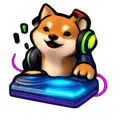
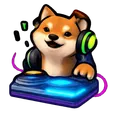
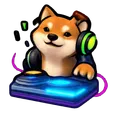
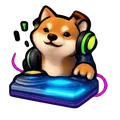
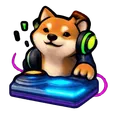
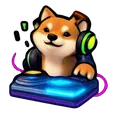
Transparent Sticker GIF – Neon DJ Shiba sample
Transparent GIF · 9 frames · 200 ms · 1.8s 816 × 816 · medium quality · transparent 798 KB

Transparent Sticker GIF – Neon DJ Shiba: 816 × 816 animated GIF, 9 frames at 200 ms per frame (1.8s seamless loop), medium quality, transparent background.

Sample prompt: A cool 3D stylized Shiba Inu DJ wearing oversized neon lime headphones bobbing its head to the beat behind a glowing holographic turntable, floating musical notes and neon magenta soundwaves, thick sticker outline, transparent background, 9-frame loop

Transparent Sticker GIF – Neon DJ Shiba (Transparent GIF · 9 frames) extracted frame 1 (0 ms)F01 · 0ms
Transparent Sticker GIF – Neon DJ Shiba (Transparent GIF · 9 frames) extracted frame 2 (200 ms)F02 · 200ms
Transparent Sticker GIF – Neon DJ Shiba (Transparent GIF · 9 frames) extracted frame 3 (400 ms)F03 · 400ms
Transparent Sticker GIF – Neon DJ Shiba (Transparent GIF · 9 frames) extracted frame 4 (600 ms)F04 · 600ms
Transparent Sticker GIF – Neon DJ Shiba (Transparent GIF · 9 frames) extracted frame 5 (800 ms)F05 · 800ms
Transparent Sticker GIF – Neon DJ Shiba (Transparent GIF · 9 frames) extracted frame 6 (1000 ms)F06 · 1000ms
Transparent Sticker GIF – Neon DJ Shiba (Transparent GIF · 9 frames) extracted frame 7 (1200 ms)F07 · 1200ms
Transparent Sticker GIF – Neon DJ Shiba (Transparent GIF · 9 frames) extracted frame 8 (1400 ms)F08 · 1400ms
Transparent Sticker GIF – Neon DJ Shiba (Transparent GIF · 9 frames) extracted frame 9 (1600 ms)F09 · 1600ms
Technical Specification

Output Comparison Checklist

GPT Image 2.6 vs 2.5 checklist: use the same brief and inspect each tool's own output. The specifications here describe this GPT Image 2.6 studio.
GPT Image 2.6 vs 2.5 checklist This GPT Image 2.6 studio What to compare
Output formats GIF, PNG and SVG Match the format to the same task
GIF canvas 816 × 816 pixels Use equal dimensions where supported
GIF timing 9 frames × 200 ms = 1.8 seconds Inspect every frame and the loop join
Background Auto or transparent Compare outlines against the same background
Site credits 7 per low GIF; 12 per medium GIF; 5 per medium PNG or SVG Keep site credits separate from provider API rates
Access Google sign-in for paid generation Check the selected tool's own access and pricing
Section 01 · SAMPLE

GPT Image 2.6 vs 2.5: compare the same task

Start a model comparison with one clear brief. Decide what should appear, what should move and where any words belong. Use the same subject and composition when comparing outputs. A still card and a moving sticker solve different problems, so choose the format before judging the result.

For a short loop in this studio, choose GPT Image 2.6 GIF output at 816 × 816. It uses nine frames at 200 ms each. Ask for a small gesture that can return to its beginning. Compare the entire animation rather than selecting the most attractive first frame.

Section 02 · FRAMES

Choose a still image when motion adds little

The decision does not need animation if your message works as one picture. An invitation, birthday card or square illustration may be clearer without moving decorations. Choose PNG here for a still composition, or SVG for a vector graphic whose shapes and lettering you can review.

The party bear birthday example is an animated GIF with "HAPPY BIRTHDAY!" above a candle cake. The DJ Shiba is another short loop. Choose PNG for a still card instead. Compare each format against its intended use. A still image cannot show whether a caption remains stable through a moving sequence.

Section 03 · COMPARE

GPT Image 2.6 vs 2.5: use a practical comparison method

Keep a GPT Image 2.6 vs 2.5 brief consistent: the same text, dimensions, background and output format wherever the tools support them. Read names and punctuation at the size you plan to share. For GIFs, watch the loop join and inspect the outline against a contrasting background.

Use the checklist below to separate format, timing and access from personal style preferences. This studio offers GPT Image 2.6 rather than a version switcher. Judge any other model through its own output and settings; this page does not rank one version above the other.

Section 04 · WORKFLOW

Choose a GPT Image 2.6 vs 2.5 workflow for your file

For a new sticker, describe an isolated subject and one repeating action. For a card, give the greeting its own area. For an existing recording, local conversion may be enough. A model comparison is useful only if you first know whether the task needs generation or an edit to material you own.

Sign in with Google to create with GPT Image 2.6 using paid credits. Low GIF output uses 7 credits and medium GIF output uses 12. Medium PNG and SVG use 5 credits each. Check the selected format and quality before submitting, then review the downloaded result and any applicable rights.

Step-by-Step Workflow

GPT Image 2.6 vs 2.5: Step-by-Step Method

  1. STEP 01

    Choose the output you need

    Begin with GIF, PNG or SVG. Write one brief with a clear subject, caption and background. Keep the target size and intended use consistent.

  2. STEP 02

    Compare the full result

    Compare results to check words, edges and composition. For animation, watch every frame and the loop join. Keep the originals so you can compare without repeated encoding.

  3. STEP 03

    Create your own file

    Use this studio for GPT Image 2.6 with Google sign-in and paid credits. Check the selected format and cost, then download and review the file at the size you will share.

Technical FAQ

Frequently Asked Questions About GPT Image 2.6 vs 2.5

How should I approach GPT Image 2.6 vs 2.5?

Choose one task and compare the same prompt, format, background and dimensions wherever supported. Check the words and whole animation. This studio uses GPT Image 2.6; it does not select a version for you.

Which formats can I create here?

Choose GIF for a nine-frame loop, PNG for a still image or SVG for vector output. Match the format to your message before comparing the look of different results.

How long is a generated GIF loop?

GIF output uses nine frames at 200 ms each, making a 1.8-second loop. Use a small repeating action and inspect the transition back to the first frame.

Can I choose a transparent background?

Yes. Choose transparent for a sticker, or use the auto background option. GIF uses transparent or opaque palette pixels, so inspect fine edges against the background where it will appear.

How are credits priced here?

This studio uses one model. A low GIF uses 7 credits, a medium GIF uses 12, and medium PNG or SVG output uses 5. See the API guide for separate public provider rates.

Does a smaller file mean a better result?

File size depends on dimensions, frames, colors and content. Judge the visible result against its purpose, then check the destination's byte and format limits.

Can I switch to GPT Image 2.5 in this studio?

This studio creates with GPT Image 2.6. Choose the format, background and quality for that model, then sign in with Google and use paid credits to generate.

Can I use a result commercially?

Check applicable model terms and rights in the material you request. A generated output does not clear third-party copyright, trademarks or a person's likeness.